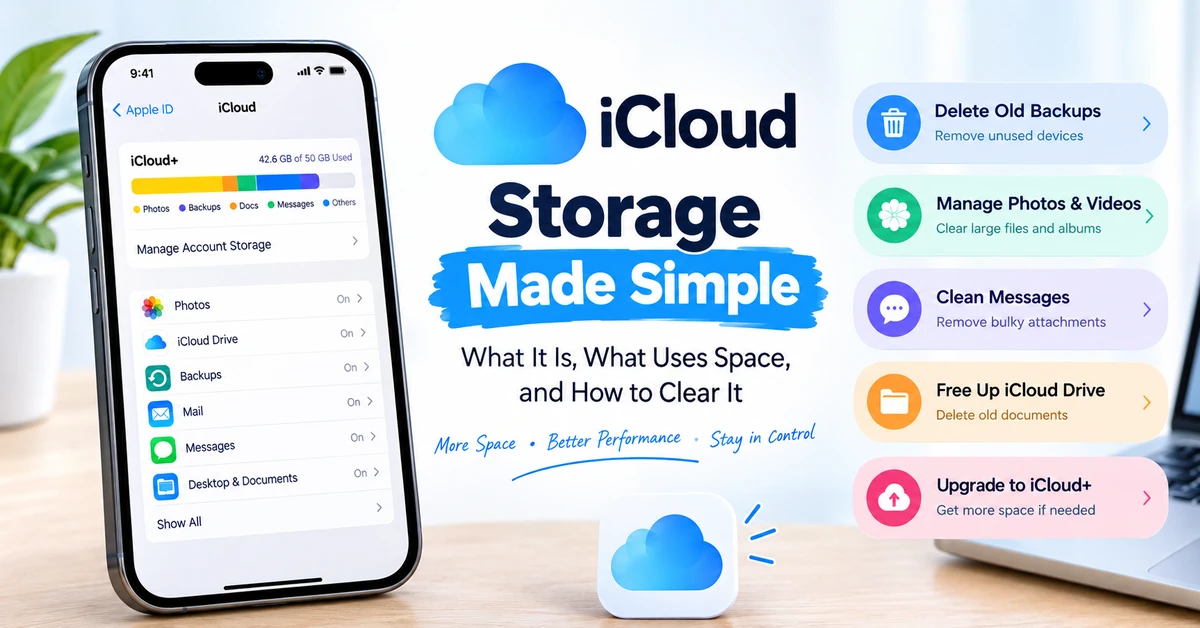
What Is iCloud Storage & How to Clear It ?
Discover what iCloud storage is and follow our step-by-step guide to easily clear out space, delete old backups, manage photos, or upgrade to iCloud+.
iCloud storage is Apple’s cloud-based system that securely stores your photos, files, device backups, and app data on Apple’s servers so you can access them from any device. If your iCloud is full, the fastest way to clear it is to go to Settings > [Your Name] > iCloud > Manage Account Storage. From there, you can delete old device backups, clear out large photos and videos, and disable backups for apps you don’t need synced.
Key Takeaways
- iCloud storage is completely separate from your iPhone’s internal physical storage.
- Old iPhone or iPad backups are usually the biggest culprits taking up unnecessary space.
- Deleting items from iCloud Drive, iCloud Photos, or Mail frees up space across all synced devices.
- If clearing space isn’t enough, US users can upgrade to iCloud+ starting at $0.99 per month for 50GB.
Introduction
If you own an iPhone, iPad, or Mac, you have likely encountered the dreaded “iCloud Storage Is Full” notification. Consequently, automated device backups are suspended, cross-device media synchronization ceases, and incoming communications via Apple Mail may be disrupted.
Understanding exactly what iCloud is, what counts against your data limit, and how to safely delete files without losing your precious memories is essential for every Apple user.
What is iCloud Storage?
iCloud storage is a virtual locker managed by Apple. Instead of saving data exclusively on the physical memory chip inside your cell phone or computer, iCloud uploads copies of your data to Apple’s secure servers via the internet.
This serves two main purposes:
- Synchronization: Snap a photo on your iPhone, and iCloud instantly sends it to your iPad and Mac.
- Safety/Backup: If your phone is lost, stolen, or broken, your contacts, messages, and photos are safe in the cloud and can be downloaded immediately to a replacement device.
What Counts Against Your iCloud Limit?
- Device Backups (iPhones, iPads, Apple Watches)
- iCloud Photos and Videos
- iCloud Drive files and documents
- Messages (including large text attachments)
- Apple Mail (emails and attachments)
- Voice Memos
- Third-party app data synced to the cloud
iPhone Storage vs. iCloud Storage: What’s the Difference?
The most common point of confusion is the difference between device storage and cloud storage.
iPhone Storage is the physical hardware inside your phone (e.g., 128GB, 256GB, or 512GB). You cannot increase this once you buy the phone. It holds the actual apps, the operating system, and locally saved files.
iCloud Storage is digital space on Apple’s servers. You start with 5GB free, and you can buy more at any time.
If your iPhone has 256GB of space, but your iCloud only has 5GB, your phone will quickly stop backing up to the cloud, even though you have plenty of room left on the phone itself.
How to Clear iCloud Storage: 7 Easy Methods
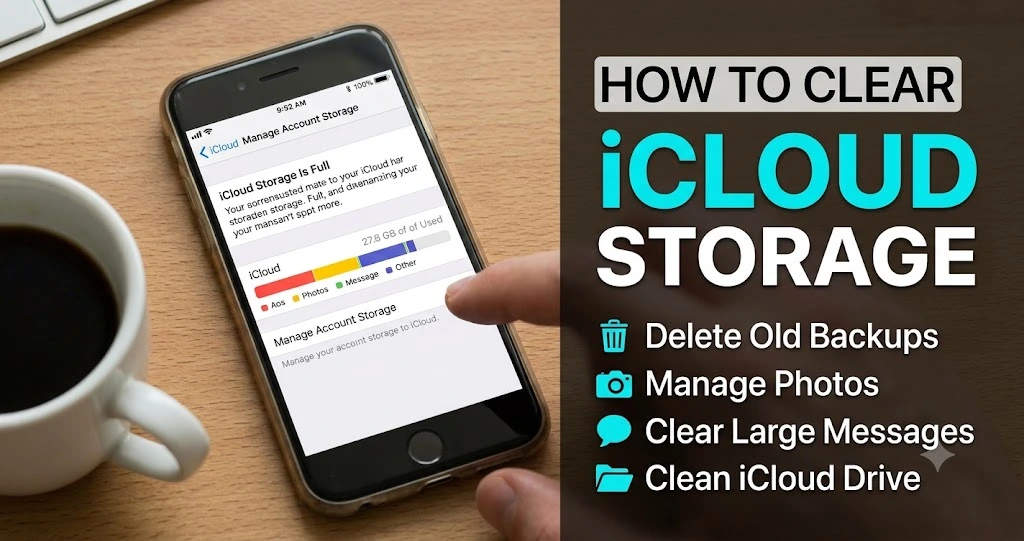
Before deleting anything, save important documents, photos, and attachments somewhere safe. Some deletions can sync across devices, and certain backup data may be difficult or impossible to recover.
1: Locate Your Storage Breakdown
Before deleting anything, see what is consuming your space:
Initiate the Settings application on your iPhone or iPad by selecting the gear-designated icon from the primary interface.
- Tap your Name/Apple ID at the very top.
- Tap iCloud.
- Tap Manage Account Storage.
Here, you will see a color-coded bar chart showing exactly which apps are eating up your space.
2. Optimize Your Existing iCloud Backup Size
It is often unnecessary to include every installed application in your iCloud backup. Auditing which applications consume the most storage can significantly reduce your overall backup footprint.
To adjust these options, open your Settings app and tap your name at the top. Proceed to iCloud, select Manage Account Storage, tap Backups, and choose your active device. Review the application list and disable backups for any software whose data you do not require.
Proceed with caution when altering these settings. Apple dictates that deactivating an application’s backup will simultaneously purge its existing backup data from iCloud servers. Additionally, select system applications are mandatory and cannot be excluded from the backup process
3. Delete Old Device Backups
Many users have backups of old cell phones they no longer own taking up gigabytes of space.
- Click on Manage Account in Storage menu, tap Backups.
- Look at the list of devices.
- If you see an old iPhone or iPad you no longer use, tap it.
- Tap Turn Off & Delete from iCloud.
Critical Advisory: Deleting a backup permanently purges that data from iCloud and subsequently deactivates the iCloud Backup function for the associated hardware. It is strongly advised not to delete your sole functional backup unless you accept the risk of permanent data loss and the inability to execute a system restore.
4. Manage iCloud Photos
- Media files, especially photos and videos, can quickly fill up your storage.
- Go to the Albums tab in the Photos app, then scroll down until you find the Media Types section.
- Review Videos, Screen Recordings, and Panoramas. Go ahead and remove any large files that you don’t need anymore.
Crucial Step: Go to the Recently Deleted album at the bottom of the Albums tab.Tap Select, then tap Delete All. Deleted photos linger here for 30 days, eating up iCloud space until you permanently erase them.
5. Clear Out Large Messages
Text threads with years of GIFs, photos, and video attachments consume massive amounts of iCloud storage.
- Go to Settings > General > iPhone Storage.
- Scroll down and tap Messages.
- Tap Photos or Videos to review large attachments.
- Swipe left to trash bulky files.
6. Clean Up iCloud Drive
- Open the Files app on your iPhone.
- Hit “Browse” at the bottom, then select “iCloud Drive.”
- Sort files by size and delete old PDFs, documents, or downloaded files you no longer need.
- Empty the Recently Deleted folder in the Files app.
7. Evaluate Voice Memos and Application Data:
Audio files and third-party application data can significantly impact your available iCloud capacity.
To audit this usage, navigate to Settings > [Your Name] > iCloud > Manage Account Storage and identify disproportionate storage consumption.
For Voice Memos, launch the application to discard obsolete recordings, ensuring critical audio is archived locally first.
For other applications, verify whether the data represents active iCloud syncing or static backup files prior to modification. Exercise caution and refrain from deleting application data solely based on file size, as this may result in irreversible data loss.
Requirements / Cost (iCloud+ Pricing)
If you cleaned up your data and still need more space, the next step is upgrading to iCloud+. Any Apple user in the US with an Apple ID can upgrade.
Here is the current US pricing for iCloud+:
| Storage Tier | US Monthly Cost | Best For |
| 5GB | Free | Basic contacts and calendar syncing. |
| 50GB | $0.99 / month | Single users wanting to back up a standard phone. |
| 200GB | $2.99 / month | Users with lots of photos, or couples sharing a plan. |
| 2TB | $10.99 / month | Families (up to 5 people) sharing storage. |
| 6TB | $29.99 / month | Professional content creators/photographers. |
| 12TB | $59.99 / month | Power users with massive video archives. |
Note: All paid plans can be shared with up to five family members using Apple Family Sharing.
Benefits of Using iCloud
- Seamless Transition: Setting up a new iPhone takes minutes; iCloud clones your old phone exactly.
- Optimize Storage: You can check a box in Settings to keepfull-resolution photosin iCloud and smaller, compressed versions on your phone, saving massive physical space.
- Security: iCloud uses end-to-end encryption for health data, passwords, and payment information.
Limitations & Risks
- The 5GB Limit: The freetier has not changed since2011, which is practically unusable for modern iPhone backups.
- Syncing vs. Backup: Remember that iCloud Photos is a syncing service. If you delete a photo from your iPhone to “save space,” it deletes it from iCloud too.
- Internet Reliance: You need a solid Wi-Fi or cellular connection to retrieve files stored exclusively in the cloud.
Alternatives / Comparisons
If you don’t want to buy iCloud storage, you can use third-party alternatives:
- Google Photos / Google One: Often cheaper, includes 15GB free, and works better if you use both Apple and Android devices.
- Microsoft OneDrive: Included if you already pay for Microsoft 365.
- Local Mac/PC Backup: You can bypass iCloud entirely by plugging your iPhone directly into your computer using a USB cable and backing it up via Finder (Mac) or iTunes/Apple Devices app (Windows).
Common Problems
“Despite the removal of photographic media, the available storage capacity remains unchanged.”
Check your “Recently Deleted” folder in the Photos app. Apple holds deleted media for 30 days in case you change your mind. To free up space immediately, you must empty that folder. Furthermore, it can take up to 24 hours for Apple’s servers to reflect the newly available space on your account dashboard.
Final Takeaway
Managing iCloud storage ultimately comes down to deciding whether your time is more valuable than your money. If you are willing to spend time auditing your files, deleting old videos, and managing device backups, you can maintain a lean iCloud account. However, For the majority of United States consumers, subscribing to the $0.99 or $2.99 monthly storage tier offers an economical safeguard. By upgrading, you guarantee that your personal files—like pictures and texts—stay completely safe even if your device is suddenly lost or broken.
FAQ
What happens if my iCloud storage is full?
Your device will stop backing up to the cloud. New photos and videos will not sync across your devices, iCloud Drive will not update documents, and you might not be able to send or receive emails from your iCloud.com address.
How do I delete photos from iCloud but keep them on my iPhone?
You cannot do this easily while iCloud Photos is turned on because it is a syncing service. To keep photos only on your phone, go to Settings > [Your Name] > iCloud > Photos, and turn off “Sync this iPhone.” Then, log into iCloud.com on a computer and delete the photos from the cloud.
Can I safely delete old iCloud backups?
Yes, as long as it is a backup for a device you no longer own, or if you just made a new backup. Deleting a backup does not delete the apps or data currently on your active phone.
Why does my phone say storage full when I bought iCloud storage?
You probably filled up your physical iPhone storage, not your iCloud storage. Buying iCloud space does not give your phone more physical memory. To fix this, turn on “Optimize iPhone Storage” in your camera settings. This moves local data into your new cloud space.
Disabling iCloud Message Synchronization
To suspend message backups, navigate to Settings > [Your Name] > iCloud. Within the “Apps Using iCloud” section, select “Show All,” tap “Messages,” and deactivate the “Sync this iPhone” setting. To permanently purge previously synchronized messaging data from the cloud repository, proceed to “Manage Storage” and select the “Disable & Delete” function.
Can I share my iCloud storage with my family?
Yes. If you pay for the 50GB, 200GB, 2TB, 6TB, or 12TB iCloud+ plans, you can use Apple’s Family Sharing feature. This lets you share your storage pool with up to five family members. They cannot see your personal files.
Keep Learning
10 Costly PUK Code Mistakes That Can Permanently Lock Your SIM
1 thought on “What Is iCloud Storage? 7 Easy Ways to Free Up Space”